 IPTV Firestick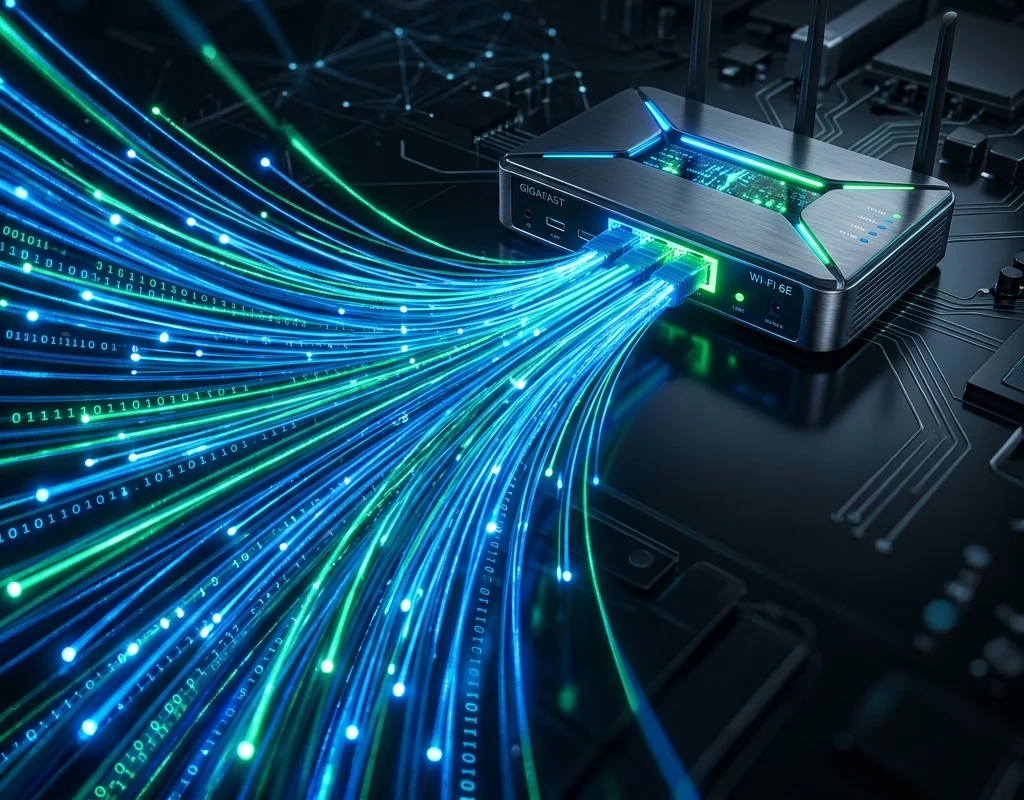
There is nothing more frustrating than your stream freezing right as your team is about to score. Buffering is the most common complaint among IPTV users, but the good news is that 90% of the time, the issue can be fixed with a few simple adjustments on your end.
Here is our comprehensive guide to stopping IPTV buffering permanently.
1. Ditch Wi-Fi for an Ethernet Connection
This is the golden rule of streaming live TV. Wi-Fi signals are susceptible to interference from walls, microwaves, and even your neighbor's router. Live IPTV streams require a constant, unbroken packet flow. Unlike Netflix (which buffers minutes of video in advance), live TV requires real-time data.
The Fix: Hardwire your streaming device (Firestick, Smart TV, or Apple TV) directly to your router using a high-quality Cat6 ethernet cable. If your device doesn't have an ethernet port, purchase an inexpensive ethernet adapter.
2. Avoid ISP Throttling with a VPN
In the UK and many other regions, Internet Service Providers (ISPs) actively throttle (slow down) IPTV traffic, particularly during major sporting events like the Premier League.
The Fix: Use a reputable Virtual Private Network (VPN). A VPN encrypts your traffic, meaning your ISP cannot see what you are streaming, and therefore cannot throttle your connection. Simply connect to a local server (e.g., a London server if you are in the UK) before opening your IPTV app.
3. Increase Your App's Buffer Size
Sometimes, micro-stutters happen because your device isn't storing enough video data in its temporary memory.
The Fix: Open your IPTV app settings (like TiviMate or IPTV Smarters) and locate the "Buffer Size" or "Network Buffer" option. Increase this to 'Large' or 'Max'. This tells the app to download a few extra seconds of video ahead of time, smoothing out minor connection dips.
4. Clear Your Device Cache
Streaming devices like the Amazon Firestick have limited storage and RAM. If your device is clogged with background apps and cached data, it will struggle to process high-definition video streams efficiently.
The Fix: Go to your device's settings, navigate to 'Applications', find your IPTV app, and click 'Clear Cache'. Do not click 'Clear Data' unless you want to lose your login details! Consider uninstalling apps you no longer use.
5. Check Your Base Internet Speed
While IPTV doesn't require gigabit speeds, it does require a stable connection. For a standard HD stream, you need a stable 15-20 Mbps. For 4K/UHD, you need at least 30-40 Mbps.
The Fix: Run a speed test directly on your streaming device (not on your phone). If you aren't getting the required speeds, you may need to contact your ISP or upgrade your router.
Conclusion
If you have hardwired your device, used a VPN, cleared your cache, and you are still experiencing buffering, the issue likely lies with your IPTV provider's servers. Premium providers invest heavily in high-bandwidth infrastructure to prevent this. Request a free trial with us to experience the difference a premium server makes.